

#
Simulation
#
Mosaic simulation
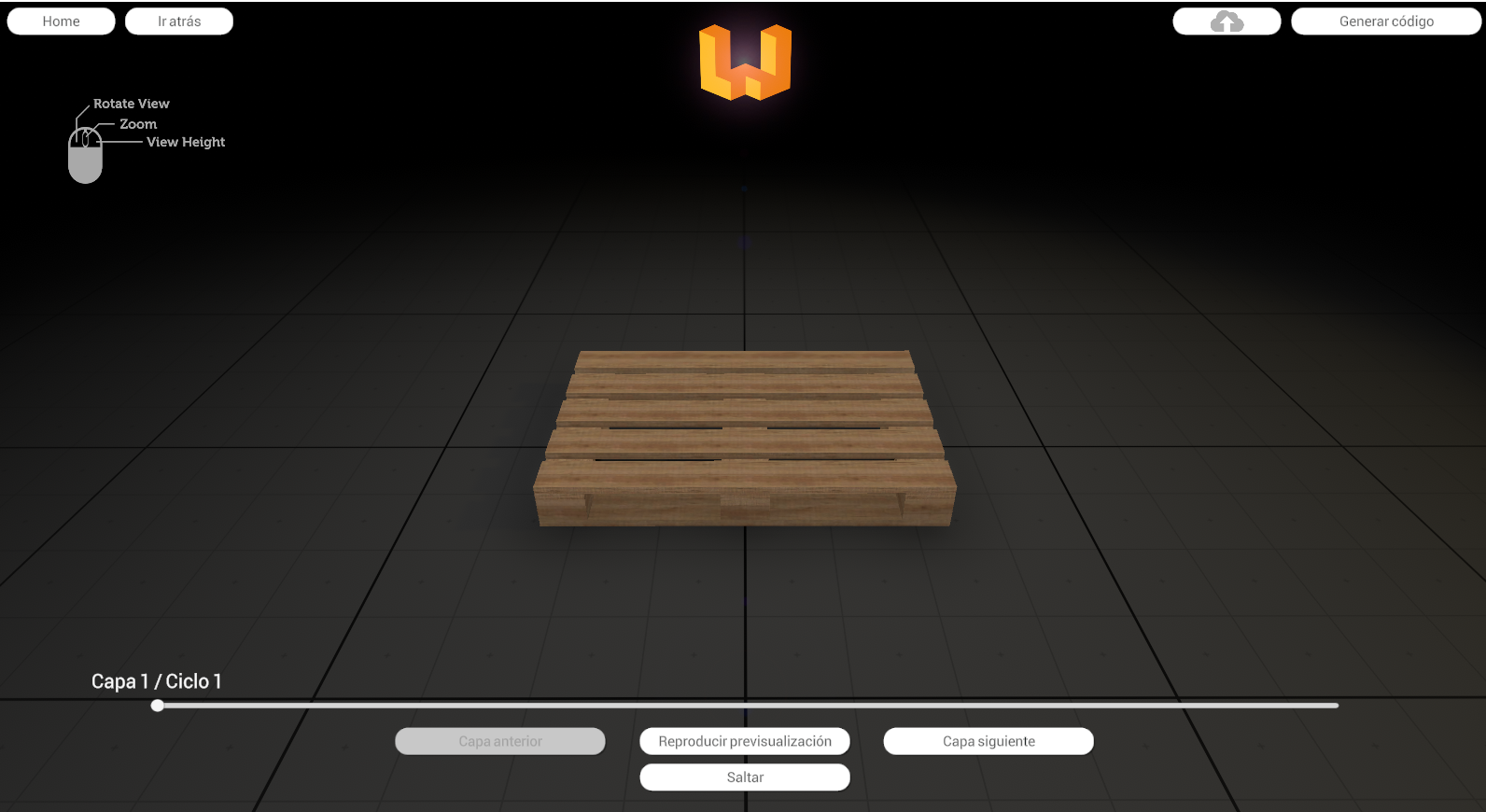
In the mosaic simulation screen we are going to visualize 👀 how the 📦 products look like on the pallet.
warning
The simulation is indicative, it does not guarantee the correct operation of the system. It depends on the factors in the environment, such as physical elements in the installation, configuration and programming of the PLC, the mosaic design and configuration of the nodes.
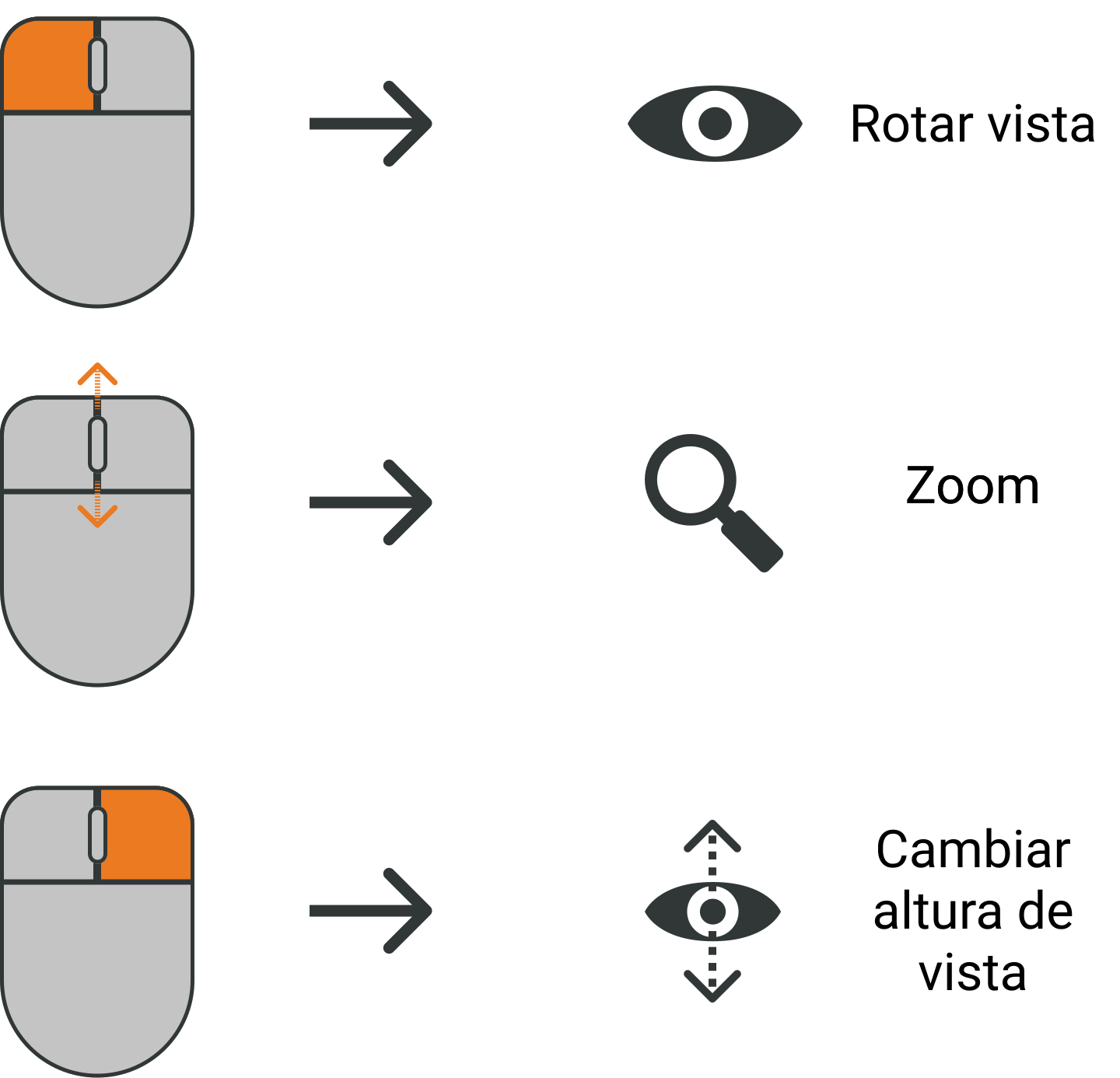
Mouse shortcuts
#
Simulation of product positioning
- To start the simulation, press play preview 📹 👁️.
Start simulation
Once the simulation has been started, the products will be displayed, according to the established order of entry, groupings and approach directions. 🗳️🔢🧭 
- For 🛑 stop 🛑 simulation click on the layer and cycle bar when necessary.
Stop simulation
In the bar we can see the layer and the cycle that is running.
- Next layer ▶️, Previous layer ◀️. If we want to see the next layer or we want to go back to the previous layer we can click on the indicated buttons.
Next layer and previous layer
We can also move from one layer to another by moving the bar.
#
Collision detection
- If during the movement of a product on the pallet, a collision is detected between another product previously placed on the pallet, the product causing the collision is marked in red.
collision warning
In the right part of the screen you can see in which layer, cycle and product the collision has been generated. 🚊💥
- To continue with the simulation, press play preview.
Colliding products will still be displayed in red. All collisions will be displayed on the right side of the screen.
#
Simulation of physical behavior
When the pallet is finished, press the Simulate physicals button.
1.Test stability. The stability of the pallet we have designed is simulated by means of a rocking movement (vibration).
2. Movement test. This test is used to observe the behavior of the mosaic in the event of lateral displacements.
3. Reset. Resets the pallet to its initial state.
#
Code generation
To generate code, the project must be paid for. Otherwise, you will not be able to proceed.

No paid project Click on the Generate Code button to access the code generation screen.

Paid project