#
Code Generation

#
Code generator
#
User interface
#
List of recipes
Contains the recipes created from the user-generated mosaics.
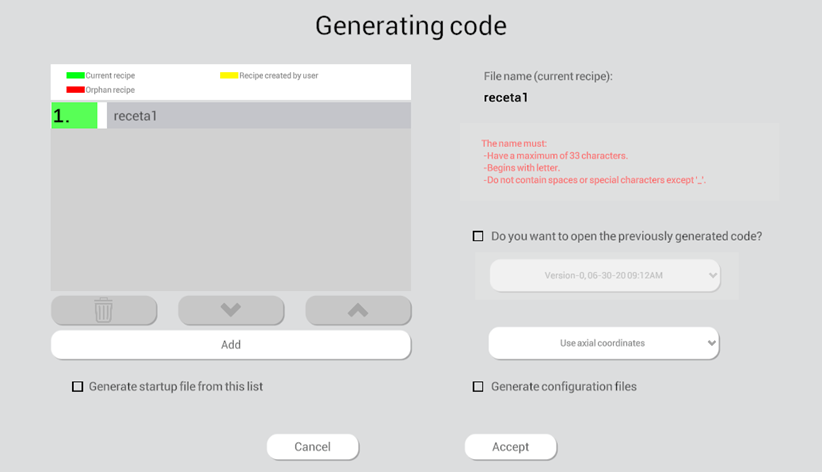
Recipe indicators
Green
In color green the current recipe in which code is to be generated is shown.
Red
In color red appear the orphan recipes. Such recipes have no path linked to them, usually associated with the deletion of one of the nodes that make up the path.
Yellow
In color yellow are represented the customized recipes, created by the user. In case the user integrates a recipe/program external to Wepall. This name must be exactly the same as the name of the program to be called.
#
Add button 
Adds a custom recipe.
#
Delete button 
Allows you to delete the selected recipe.
#
Up and down buttons 
They are used to change the order of a recipe selected in the list.
#
Option to load previous code 🔄
Allows to load a previously generated version of code.
#
Generate startup file from this list
Selecting this option will generate the startup file from the recipe list.
#
Generate configuration files
Selecting this option will generate the robot configuration files.
#
Recipe management
In the Wepall software, each recipe will correspond to a path of those linked to the node configuration.
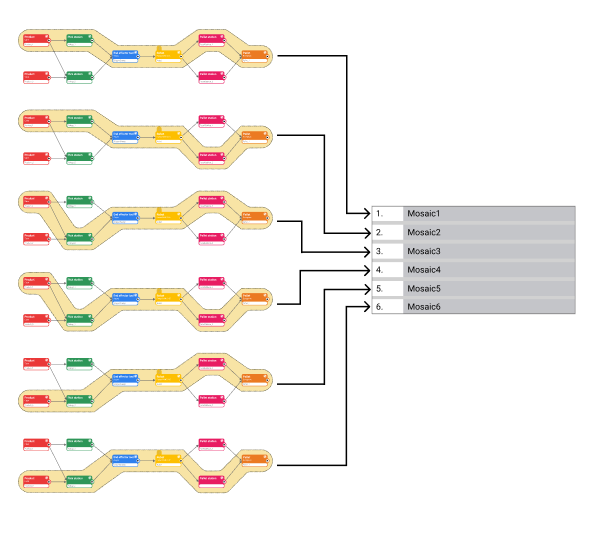
Modification or deletion of a node linked to one or multiple recipes may result in malfunctioning of the installation. Check any modification before loading the code in the robot.
#
Source code generation
- Enter the name of the new generated mosaic.
The name must meet the following requirements:
- The name shall have alphanumeric characters.
- The name shall begin with a letter.
- The name shall not contain spaces.
- Special characters are not accepted, except for "_".
- The maximum length shall be 33 characters.
- The name must not be a reserved word, by the robot manufacturer.
- The number indicated to the left of the entered tile will correspond to the recipe number that will be transmitted by the PLC for selection. If you wish to change the order, use the scroll buttons.
Modifying the order of the recipes can lead to malfunctioning of the installation. Check any modification before loading the code in the robot.
- Select the desired code generation options.
- Press OK.
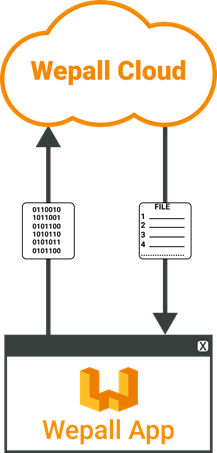
At this point the software contacts the Wepall cloud system, and will generate the requested code.