

#
Layer management
#
Add a layer
Once the first layer has been configured, open the layer menu by clicking on the layer icon.
Click on ➕ to add the required layers.
Select the desired layer.
#
Remove a layer
- Select the desired layer.
If you need to remove more than one layer at the same time, hold down the Ctrl key on the keyboard while selecting the layers.
- Click on the remove layer icon.
#
Duplicate a layer
- Select the layer you want to duplicate.
If you need to duplicate more than one layer at the same time, hold down the Ctrl key on the keyboard while selecting the layers to duplicate.
- Click on the duplicate layer icon. The new duplicated layer will then appear in the layer list.
#
Move layers
Select the layer you want to move.
Click on the desired move icon (either upward or downward). The layer will then move to the new desired position.
#
Layers with errors
If a layer contains errors, its color will change and it will turn red.
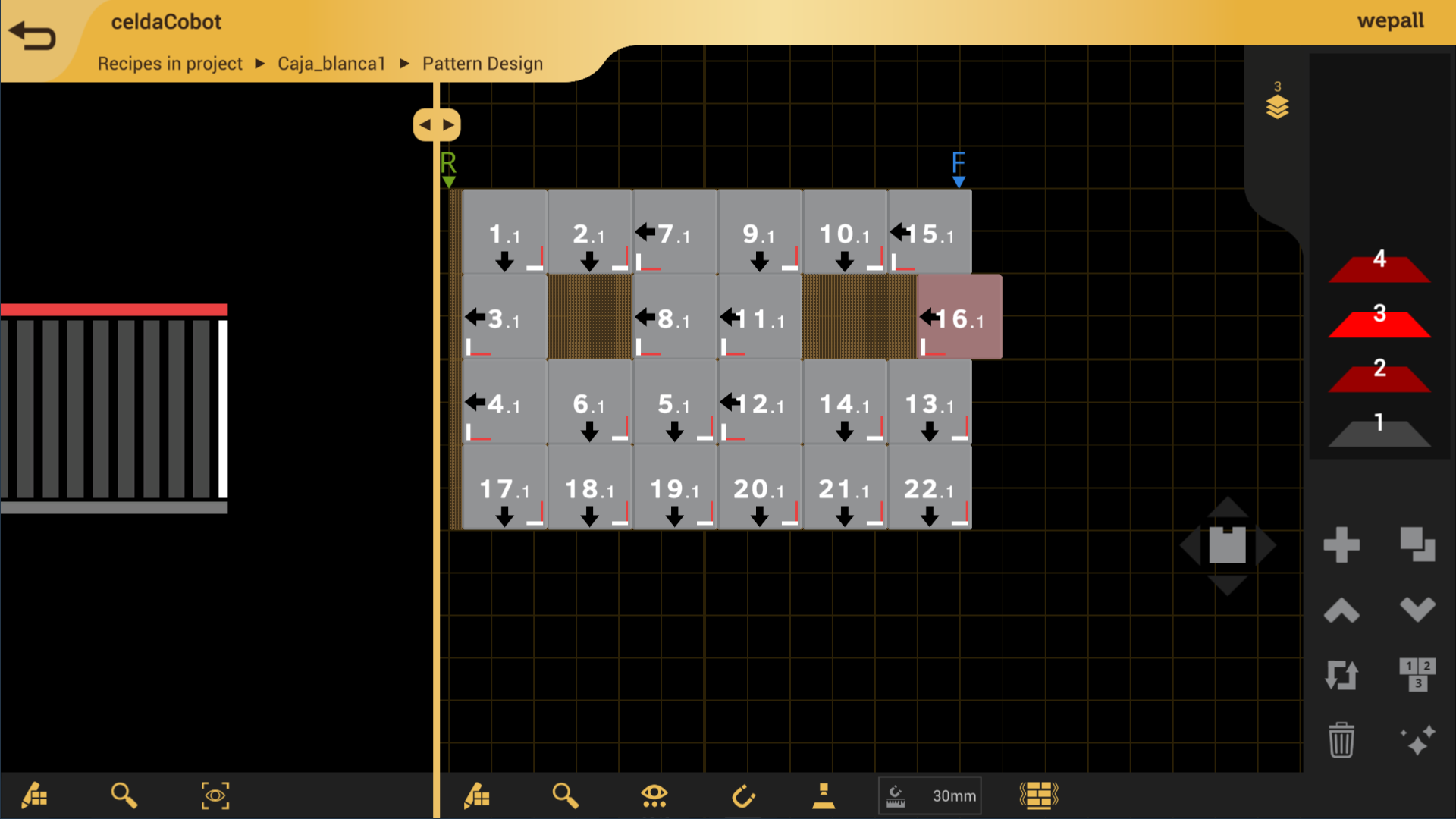
Situations that may generate errors include:
- Product overlap.
- Products outside the pallet surface.
- The product does not have sufficient support from products on the lower layer.